To design an infographic, start with one message and one audience, pick the infographic type that fits your data, then sketch the story before you open a design tool. After that, choose a layout, match each chart to its data, set strict color and type rules, write short labels, and test it on real readers before you publish.
Most weak infographics fail at the first step, not the last. Someone picks a pretty template, pours data into every box, and ends up with a poster that looks busy but says nothing. This guide fixes that with 10 steps and 11 real infographics from NASA, the CDC, NOAA, the EPA, USGS, and the EIA, each annotated with the design move worth stealing.
- Write the one sentence your infographic must prove before you open Canva, Figma, or any template.
- Pick the type from your data: timelines for dates, maps for places, flow diagrams for splits, side-by-sides for comparisons.
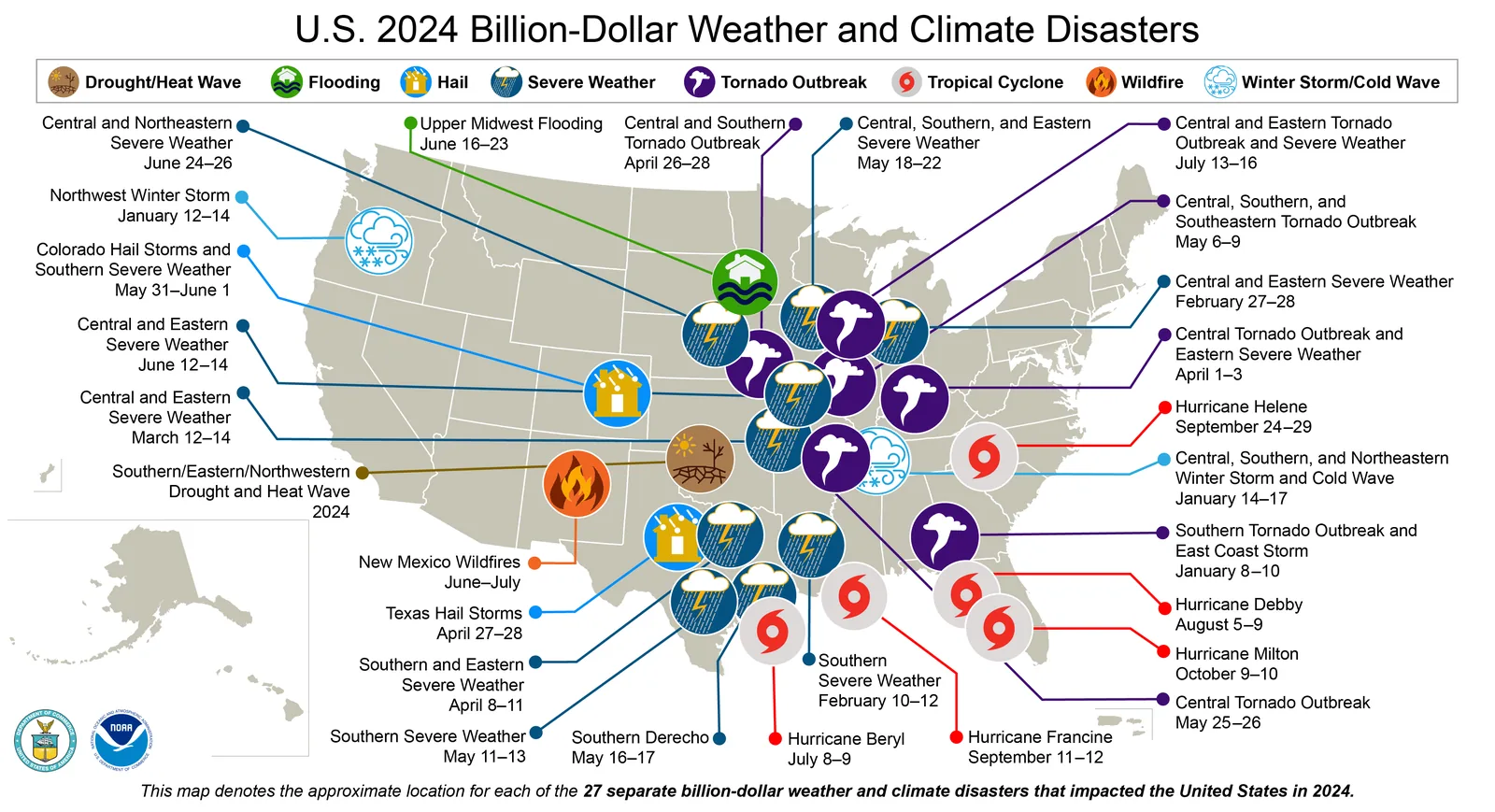
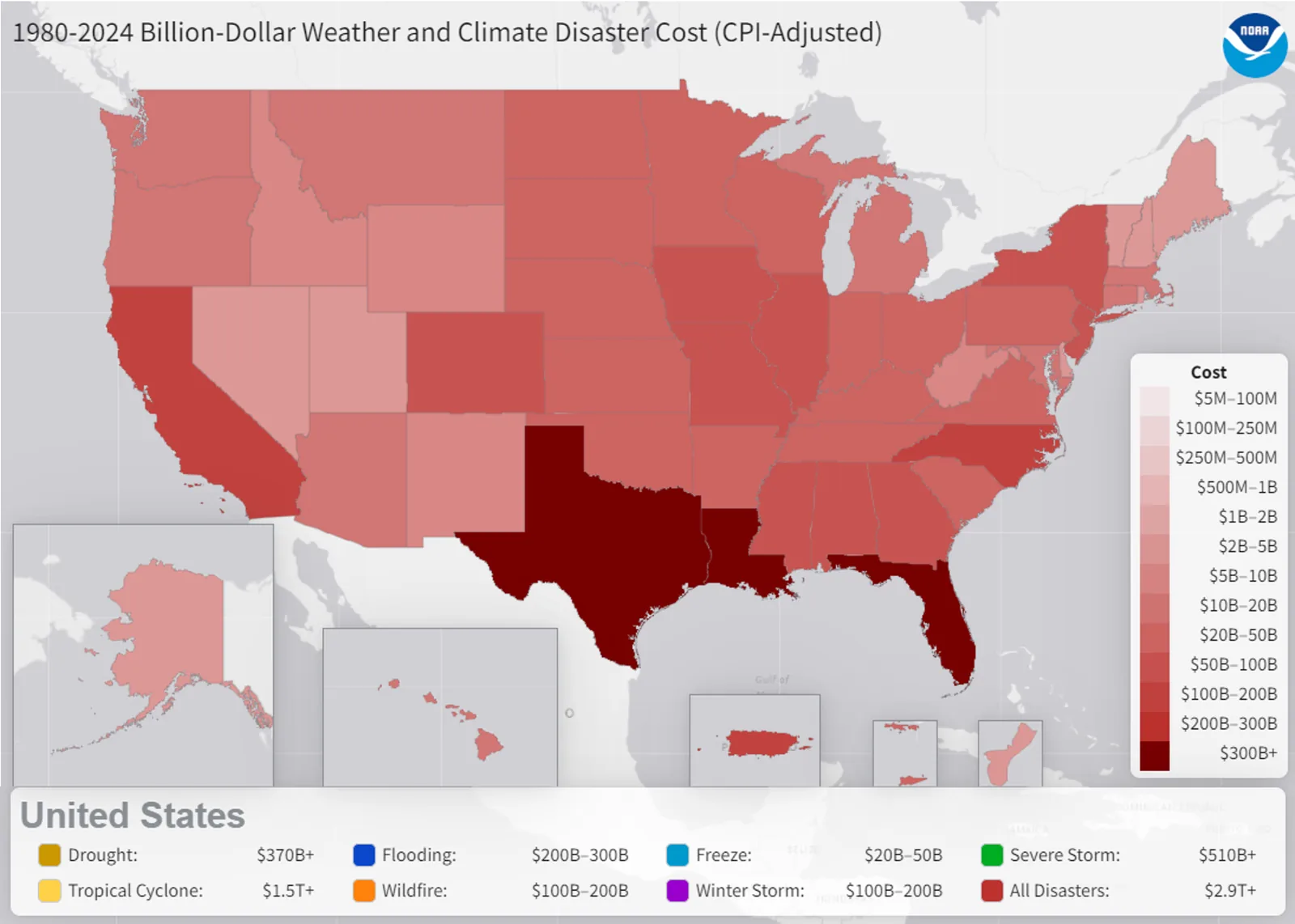
- Use one hue that darkens for ranked values and distinct hues for categories, as NOAA's two disaster maps do.
- Keep text contrast at 4.5:1 or higher, the WCAG minimum for normal-size text.
- Print the data source on the graphic itself, the way EIA footnotes its energy flow diagram.
- Publish key numbers as HTML text beside the image so search engines and AI answers can read them.
What Is an Infographic?
An infographic is a single graphic that combines data, short text, and visuals to explain one idea fast. A chart shows numbers. An infographic shows the story behind them: the claim, the evidence, and what the reader should do next.
That difference matters for design. A bar chart can live without a headline. An infographic can't. Every part of it, from the title to the footer, should push one message forward.
How to Design an Infographic in 10 Steps
Here's the full process at a glance. Each step below explains how to do it and shows a real example.
- Start with one message and one audience.
- Choose the right infographic type for your data.
- Gather and fact-check your data.
- Outline the story before you design.
- Pick a layout and reading path.
- Match each chart to its data.
- Set color, type, and spacing rules.
- Write short, scannable copy.
- Choose a tool or template.
- Review and test before you publish.
1. Start With One Message and One Audience
Write the one sentence your infographic must prove, then name who it's for. If you can't fit the message in one sentence, you're planning two infographics.
The EPA's waste infographic is a clean model. Its message is that Americans throw away too much and can cut it with a few habits. It opens with two oversized numbers, then turns them into four actions: reduce, reuse, recycle, and rethink.
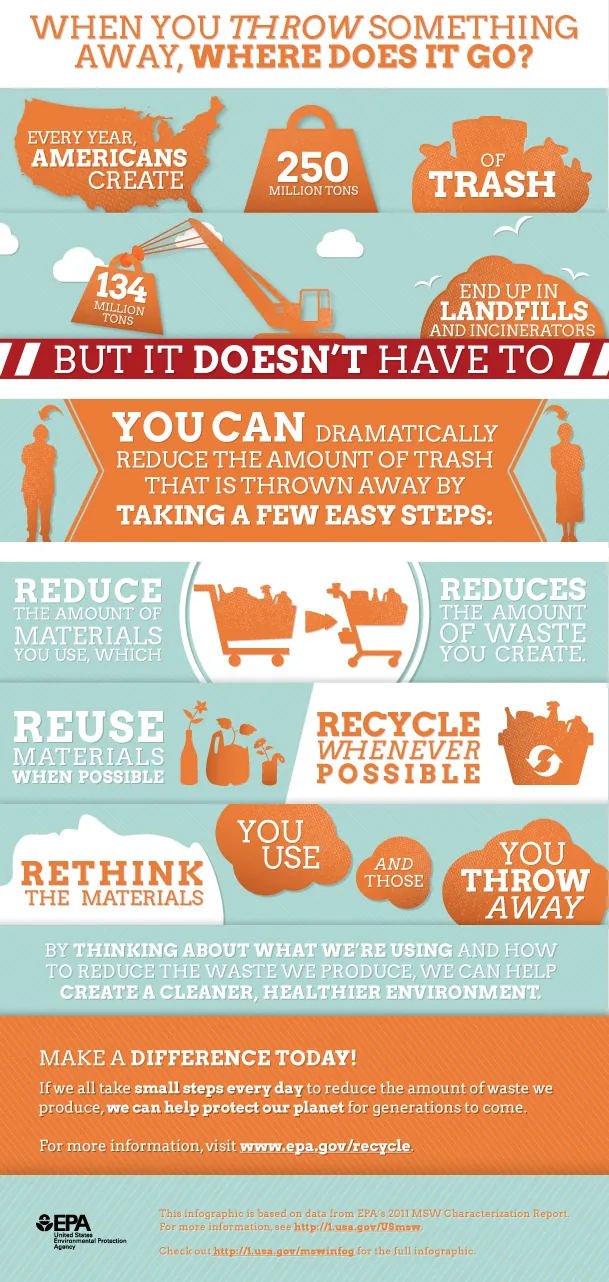
Notice what it leaves out. There's no history of landfills and no breakdown by state. Every element supports the single message, which is why it reads in seconds.
Your audience changes the design, too. Executives want the conclusion in the headline. Students want the process. Social scrollers want one number big enough to stop the thumb. Decide which reader you're designing for before you write a word.
2. Choose the Right Infographic Type
The type comes from the shape of your data, not from the template you like. Ask what your data is about: time, place, a process, a comparison, or a split of a whole. Then match it here.
| Infographic type | Best for | Real example in this guide |
|---|---|---|
| Statistical | A few headline numbers with context | EPA waste infographic (Figure 1) |
| Timeline | Events in date order | NASA Voyager timeline (Figure 2) |
| Comparison | Two or more options side by side | NASA mobile launchers (Figure 3) |
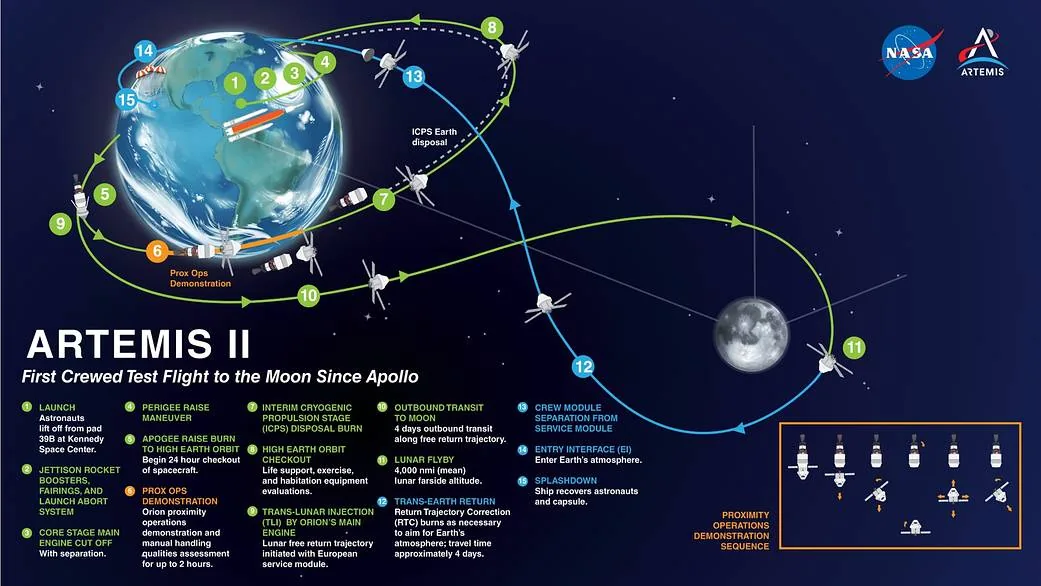
| Journey or route | A path with stages | NASA Artemis II mission map (Figure 4) |
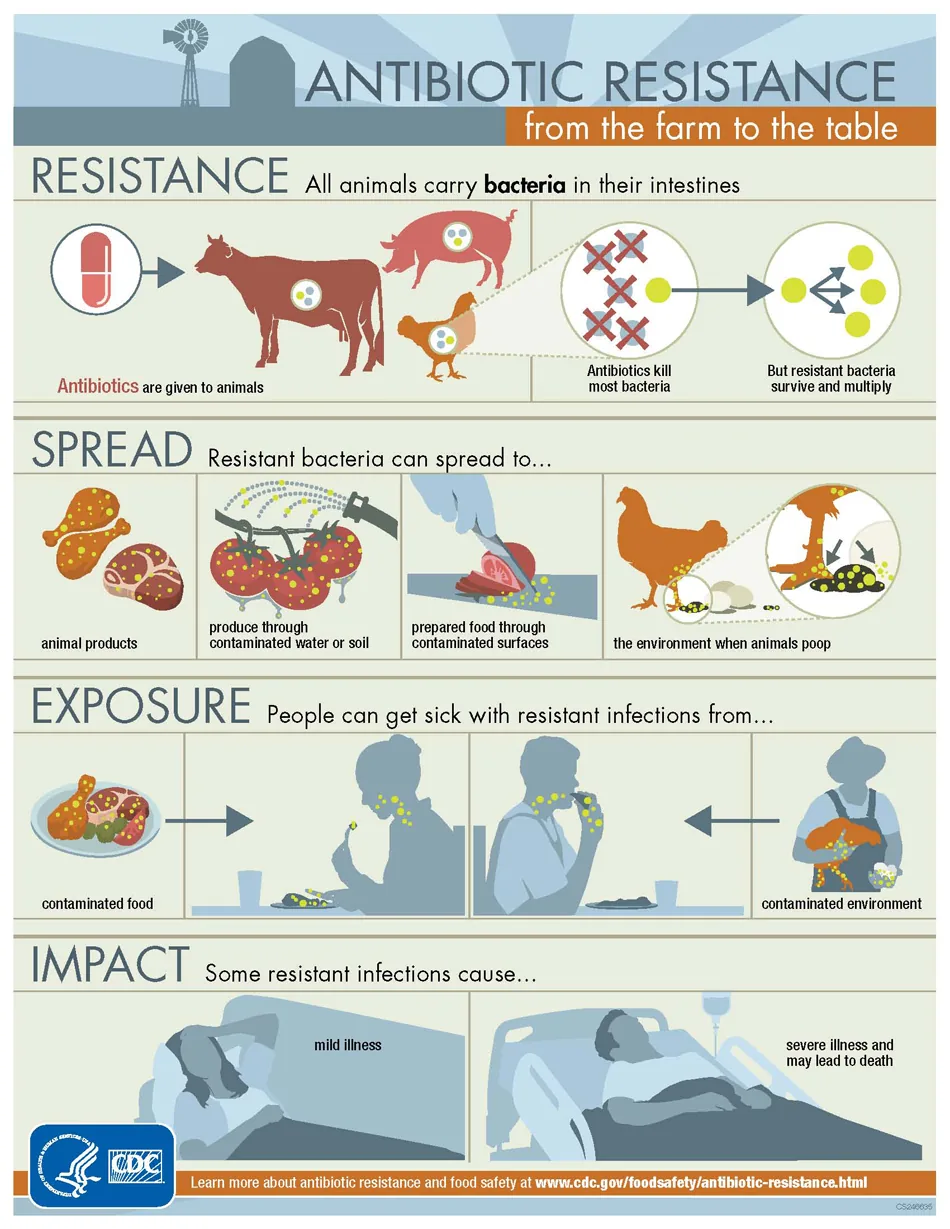
| Process or story | Cause and effect, step by step | CDC antibiotic resistance (Figure 5) |
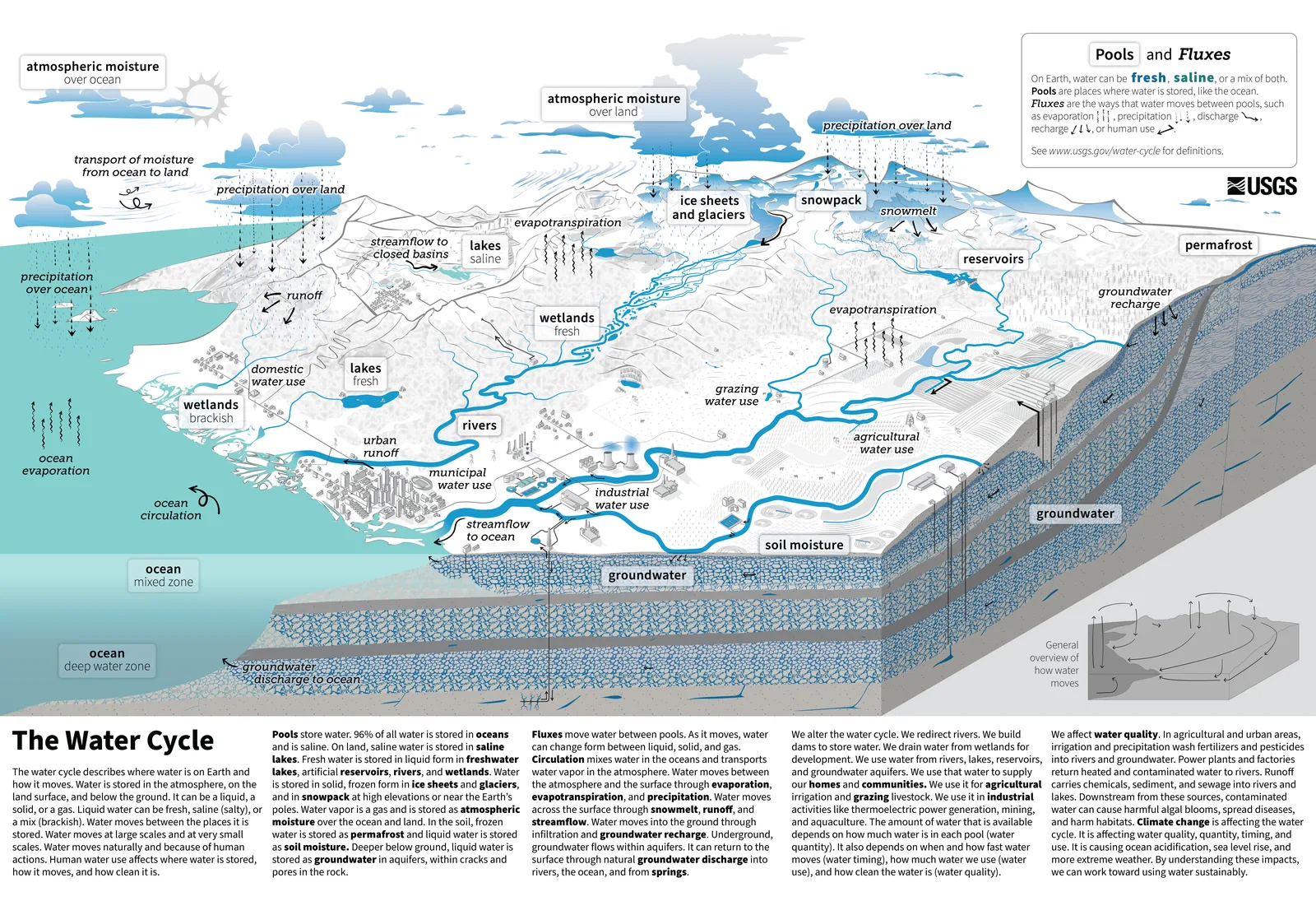
| Cycle | A process that loops | USGS water cycle (Figure 6) |
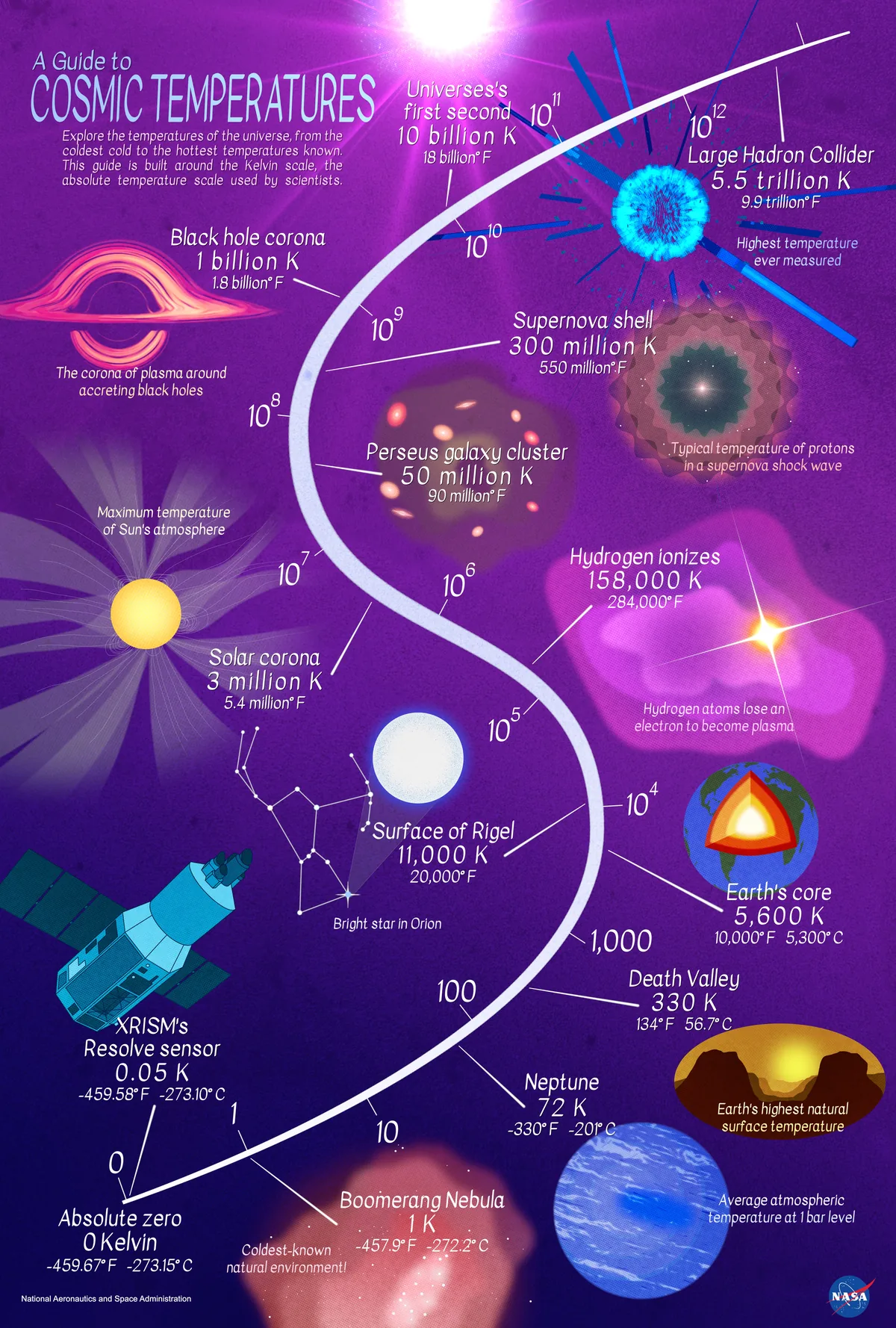
| Scale | Values that span a huge range | NASA cosmic temperatures (Figure 7) |
| Flow diagram | How totals split across categories | EIA energy flow (Figure 8) |
| Map | Data tied to locations | NOAA disaster maps (Figures 9 and 10) |
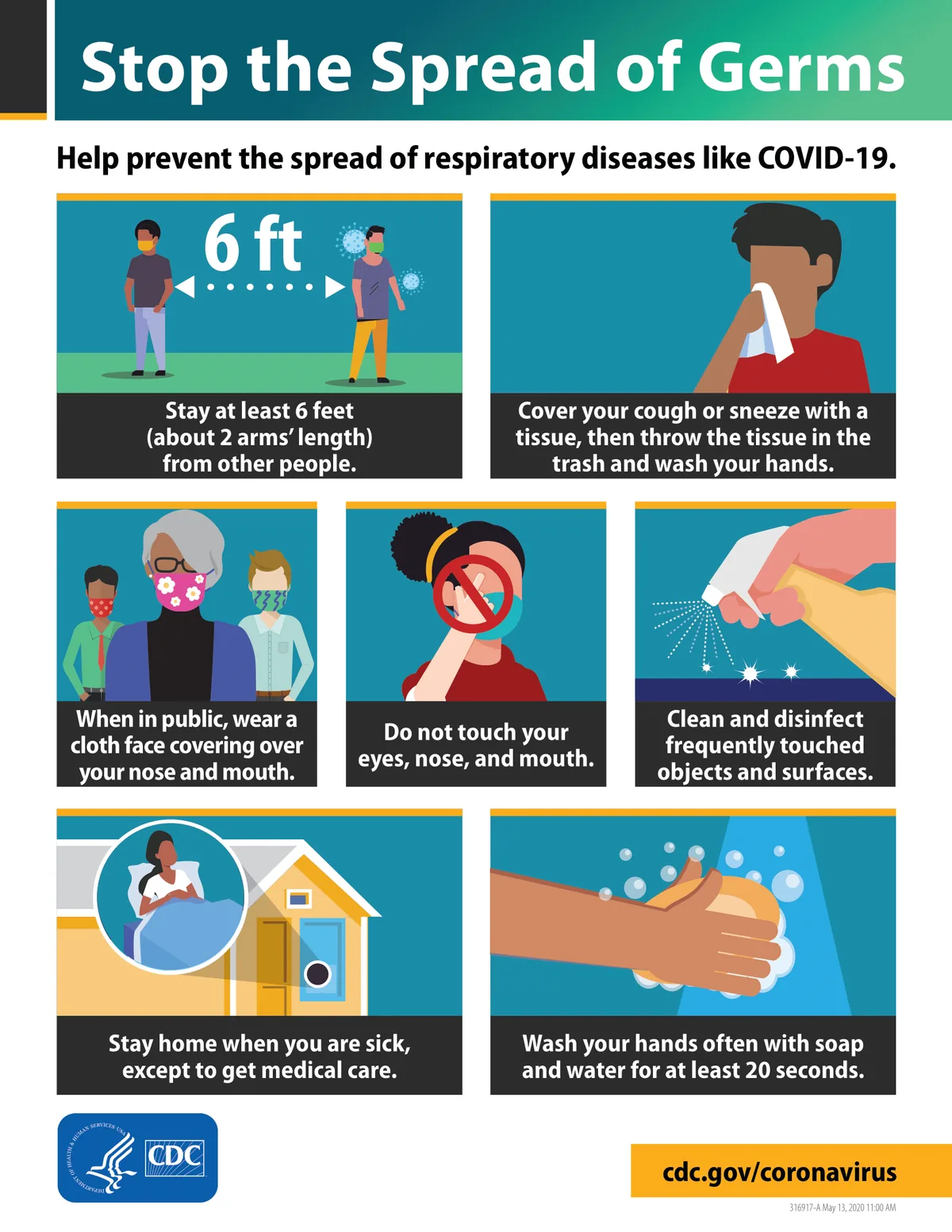
| List or icon grid | Short instructions or tips | CDC germ prevention poster (Figure 11) |
Three of these types show up most in marketing, so here's what good looks like for each.
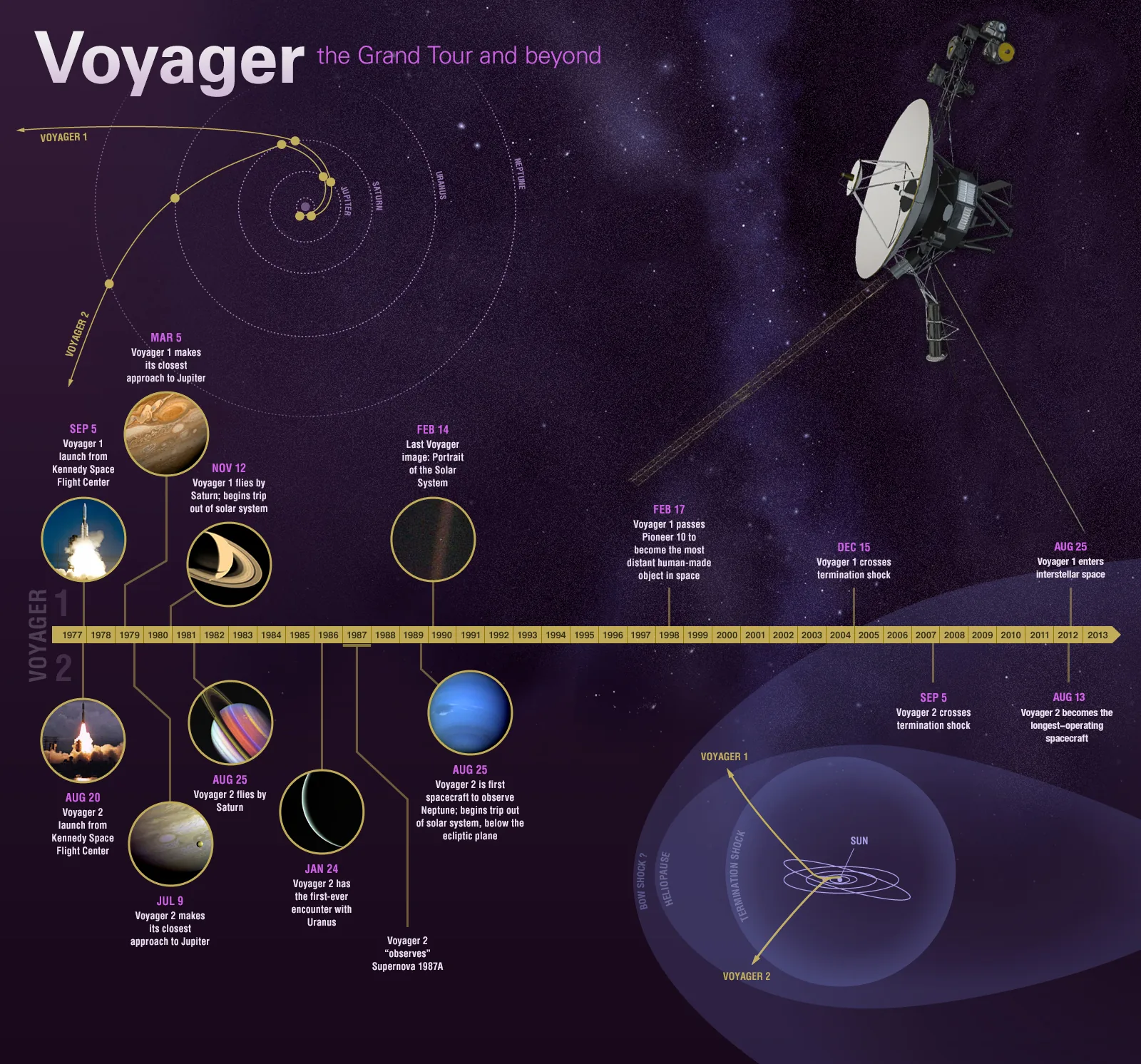
Timeline. NASA's Voyager graphic runs one dated axis through the middle of the canvas. Every planet flyby hangs above or below it, so decades of events stay in order without a single paragraph.
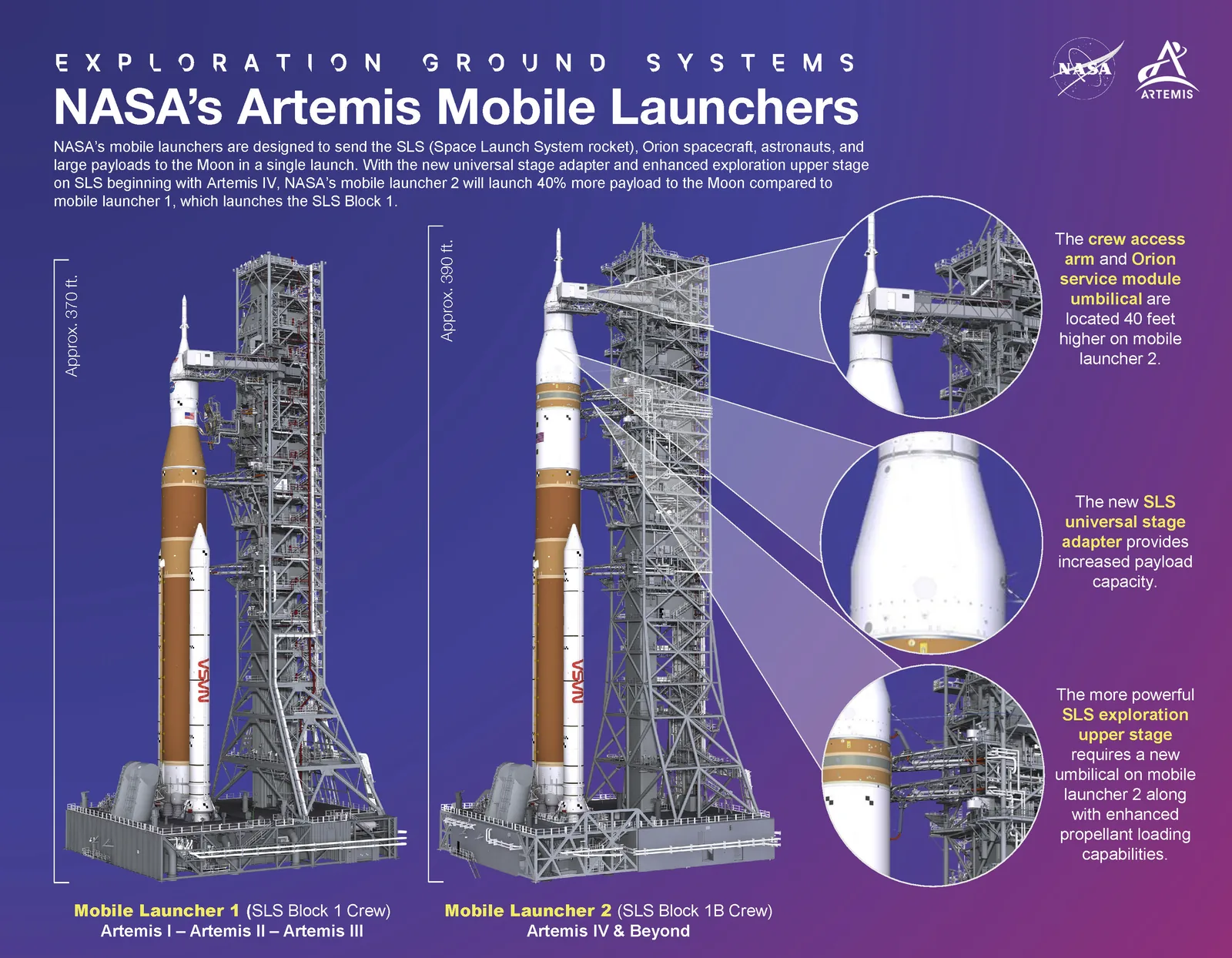
Comparison. NASA's mobile launcher graphic draws two towers at the same scale, side by side. Call-out circles zoom into the parts that differ. If your comparison items aren't drawn to the same scale, readers will compare the wrong thing.
Journey. The Artemis II mission map connects numbered phases along one looping trajectory. A 10-day flight becomes one path from launch to splashdown. Use this pattern for customer journeys and onboarding flows.
3. Gather and Fact-Check Your Data
Use primary sources, and cite them on the graphic. An infographic gets screenshotted and shared without its blog post, so the source line has to travel with the image.
Good places to start:
- data.census.gov for U.S. population, business, and housing data.
- The Bureau of Labor Statistics for jobs, wages, and prices.
- Our World in Data for global trends with downloadable charts and sources.
- Pew Research Center for public opinion and technology use.
- Your own product, survey, or customer data, which no competitor can copy.
Check three things before a number goes on the canvas. Is it the latest release? Does the unit match your label, such as millions versus thousands? Is the comparison fair, with the same time period and the same population? A single wrong number can sink trust in the whole graphic.
4. Outline the Story Before You Design
Sketch the sections in plain text first. A wireframe takes 10 minutes and saves hours of rearranging boxes in a design tool.
The CDC's antibiotic resistance infographic shows why. It's built from four labeled bands that run top to bottom: resistance, spread, exposure, and impact. Each band answers one question, and arrows carry the reader from cause to effect.
Use the same skeleton for your outline:
- Headline: the one-sentence message.
- Hook: the number or image that earns attention.
- Three to five sections: each one answers a single question.
- Takeaway or action: what the reader should do next.
- Footer: sources, date, and your brand.
If a section doesn't answer a question your reader has, cut it.
5. Pick a Layout and Reading Path
Choose the layout that matches how your story moves, then make the reading path obvious. Readers should never wonder where to look next.
The common patterns:
- Vertical scroll: one column, top to bottom. Best for blogs, Pinterest, and mobile.
- Grid: equal tiles. Best for tips and lists.
- Z-pattern: left to right, then down. Best for wide slides and print.
- Scene or radial: one illustration with labels placed on it. Best for cycles and systems.
The USGS water cycle uses a scene. One illustrated landscape carries every stage, so labels sit where the action happens instead of in a separate legend. Your eye follows water from ocean to cloud to river without being told where to go.
NASA's cosmic temperature guide uses a tall vertical scroll. A single curved scale runs from absolute zero to trillions of degrees, and every example hangs off that curve. One spine, many stops: it's the easiest layout to read on a phone.
Build hierarchy with size first. Make the headline the largest element, the key number second, and section titles third. If two elements are the same size, readers treat them as equally important.
6. Match Each Chart to Its Data
Pick the chart from the question it answers, not from what looks interesting. Use this table as your default.
| If your data shows... | Use this chart | Avoid |
|---|---|---|
| A comparison between items | Horizontal bar chart | 3D bars and pies with many slices |
| Change over time | Line chart | Bars for long time series |
| Parts of a whole | Stacked bar, or a pie with five slices or fewer | Pies that need a legend to decode |
| How totals split across groups | Flow (Sankey) diagram | Several separate pie charts |
| Values tied to places | Shaded (choropleth) map | Maps where location doesn't matter |
| Steps or stages | Numbered flow with arrows | Unnumbered icons in a grid |
The EIA's energy flow diagram is the best example of a hard chart done right. Proportional bars on the left show each energy source. Bars on the right show each sector. The lines between them show where every source goes, which would take a dozen pie charts to explain.
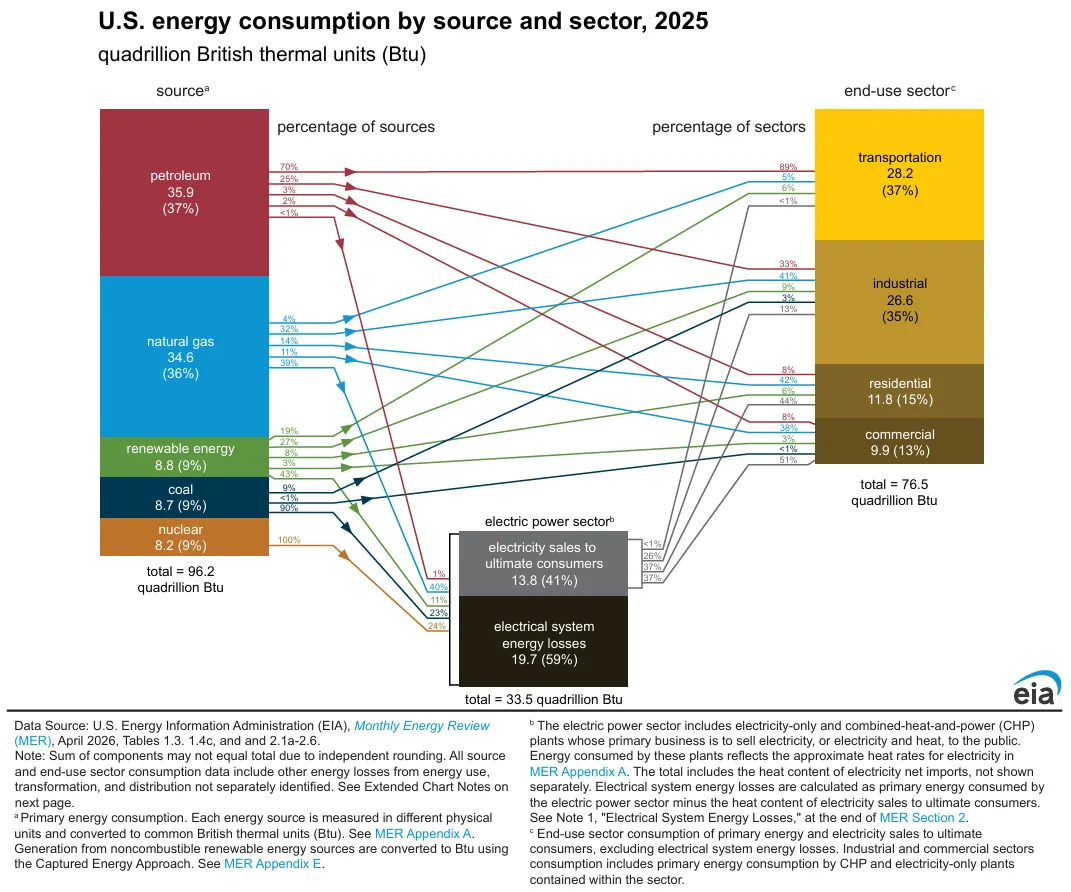
Notice the footnote block under it. EIA lists the data source, the units, and the release date on the graphic itself. Copy that habit.
7. Set Color, Type, and Spacing Rules
Decide your design rules once, then apply them everywhere. Consistency is what makes an infographic look professional, far more than illustration skill.
Color: match the palette to the data type. NOAA's two disaster maps show the difference. The 2024 events map uses distinct colors for categories, such as drought, flooding, and wildfire, because those categories aren't ranked.
The cost map does the opposite. It uses a single red that gets darker as the cost rises, so the most affected states stand out before you read a number.
A few color rules that hold up:
- Use three to five colors in total: one primary, one or two accents, and neutrals.
- Use one hue at different strengths for ranked values and different hues for categories.
- Keep text contrast at a ratio of at least 4.5:1, the WCAG minimum for normal text.
- Never rely on color alone. Add labels or patterns for readers with color blindness.
If you're starting from a brand color, our color harmony tool builds complementary and analogous palettes around it.
Type: two fonts at most. Use one display font for the headline and big numbers, and one readable sans-serif for labels. Set body labels at a size people can read on a phone without zooming.
Spacing: give sections room. Use the same gap between every section and a larger margin around the edges. White space is what tells readers where one idea ends and the next begins.
8. Write Short, Scannable Copy
Write labels, not paragraphs. Most infographic text should be a headline, a number, and a short line that explains it.
The CDC's germ prevention poster shows how far short copy can go. Six equal tiles each pair one illustration with one instruction, such as "Wash your hands with soap and water for at least 20 seconds." There's no intro and no conclusion. You get the whole message in a few seconds. (It's a 2020 poster, so read it as a design example, not current health guidance.)
Copy rules worth following:
- Write the headline as a claim or a question, not a topic. "Most trash can be avoided" beats "Trash statistics."
- Start each label with a verb or a number.
- Round numbers unless precision is the point.
- Cut adjectives first. They rarely carry data.
- Read every label out loud. If you run out of breath, split it.
9. Choose a Tool or Template
Pick the tool your team can finish in, not the one with the most features. Here's how the popular options compare.
| Tool | Best for | Free option |
|---|---|---|
| Canva | Fast drafts from templates, non-designers | Free plan |
| Adobe Express | Teams already using Adobe fonts and assets | Free plan |
| Piktochart | Data-heavy reports and charts | Free plan with very limited downloads |
| Venngage | Business infographics and branded templates | Free plan with five designs and public sharing |
| Figma | Custom layouts and design teams | Free Starter plan |
| Adobe Illustrator | Full control and print-ready vector files | No free plan, 7-day free trial |
Templates speed you up, but they also hide weak thinking. Use one only after you've written your outline in step 4, then change the template to fit your story, not the other way around.
10. Review and Test Before You Publish
Test the infographic on three people who haven't seen it. Give each one five seconds, then ask what the main point was. If they can't tell you, the hierarchy or headline needs work.
Then run this checklist:
- Every number matches its source, unit, and date.
- The source line and your brand appear on the graphic.
- Text passes the 4.5:1 contrast check.
- The infographic reads well at phone width.
- Labels are spelled correctly, and names match official capitalization.
- You've written alt text and a short text summary for the web version.
Infographic Sizes for Web, Social, and Print
Design for the channel where most people will see it, then export versions for the rest. These are the sizes we use as starting points.
| Channel | Size (width × height) | Notes |
|---|---|---|
| Blog post | 800 px wide, any height | Export at 1,600 px wide for sharp retina screens |
| 1000 × 1500 px (2:3) | Taller pins can be cut off in feeds | |
| Instagram or LinkedIn feed | 1080 × 1350 px (4:5) | Split long infographics into a carousel |
| X (Twitter) | 1600 × 900 px (16:9) | Use one key section, not the whole graphic |
| US Letter print | 2550 × 3300 px | 8.5 × 11 in at 300 dpi |
| A4 print | 2480 × 3508 px | 210 × 297 mm at 300 dpi |
For every platform's current specs, see our social media image sizes guide.
How to Publish an Infographic for SEO and AI Search
Search engines and AI assistants can't read text that's locked inside an image. Give them the same information as HTML, and your infographic can rank and get cited.
- Write descriptive alt text. Describe the message, not the look. For complex graphics, follow the W3C guidance on complex images and add a longer text description on the page.
- Add a text summary under the image. List the headline, the key numbers, and the source in two to four sentences. This is the part AI answers quote.
- Name the file clearly. Use words, such as "how-to-design-an-infographic-steps.webp" instead of "final-v3.png."
- Export as WebP. It keeps detail at a smaller file size than PNG, which helps page speed.
- Repurpose it. Split sections into a carousel, pull the key number into a social post, and offer a PDF for print.
Common Infographic Design Mistakes
Most bad infographics make the same few mistakes. Check yours against this list.
- Too much text. If a section needs a paragraph, it belongs in the blog post, not the graphic.
- The wrong chart. Pies with many slices and 3D charts distort comparisons. Use bars.
- No source. An unsourced number reads as a guess, and it can't be checked once it's shared.
- Low contrast. Light gray text on white looks clean and fails accessibility.
- No clear path. If two elements compete for first place, readers bounce between them and remember neither.
- Decoration over data. Icons should label information, not fill empty space.
What makes a good infographic?
A good infographic proves one clear message with accurate, sourced data. It has an obvious reading path, a headline that states the takeaway, charts that fit the data, and short labels. Readers should get the main point within five seconds.
How long should an infographic be?
Keep it to one main message and three to five sections. For blogs and Pinterest, a tall vertical layout works well. If you need more than five sections, split the topic into two infographics or a carousel.
What size should an infographic be?
For a blog, design at 800 px wide and export at 1,600 px for sharp screens. Use 1000 × 1500 px for Pinterest and 1080 × 1350 px for Instagram or LinkedIn. For print, use 2550 × 3300 px for US Letter at 300 dpi.
What are the main types of infographics?
The main types are statistical, timeline, comparison, process, map, list, and flow diagram. Choose by the shape of your data: dates need a timeline, places need a map, and splits of a total need a flow diagram.
Can I make an infographic in Canva for free?
Yes. Canva's free plan includes infographic templates, charts, and icons, which is enough for most blog and social graphics. Paid plans add brand kits, more premium assets, and team features.
How do I cite sources on an infographic?
Add a footer line with the publisher, the dataset name, and the release date, in that order. Put the full link in the text summary on your web page so readers can check every number.
Summarize this article with AI:
 ChatGPT
 Perplexity
 Claude
 Grok
Grok

Written by
Taher BatterywalaFounder & Chief Curator
Taher Batterywala is a creative marketer who loves to write & design content that organically drives conversions. He is the creator of Pineable, the world's first content marketing design inspiration hub. He regularly shares his thoughts about content design, SEO, and marketing. As a true cinephile, he admires movies above anything else.