On this page
Canva's AI presentation maker turns a prompt, outline, or uploaded file into a designed slide deck inside the Canva editor. It's the best pick if you already design in Canva and want a fast first draft you can polish with templates, brand kits, and stock assets. It's a weaker pick if your company lives in PowerPoint, because exported PPTX files can shift fonts and drop animations.
Our verdict: 4 out of 5. Best for marketers, small business owners, educators, and anyone already using Canva. Free to try with a limited monthly AI allowance; Canva Pro costs $144 per year in the US and includes 10x more AI allowance than Canva Free. Top alternatives: Gamma, Beautiful.ai, and Plus AI.
- Canva AI for Presentations is a Premium AI tool, so every deck you generate draws from a shared monthly AI allowance.
- Canva Pro, billed yearly, unlocks a much larger AI allowance than Canva Free plus Brand Kits.
- Canva AI can start from a typed prompt, a voice prompt, an uploaded file, or an existing template.
- PPTX exports may change fonts and drop animations, so check every slide after downloading.
- Pick Plus AI instead if your team must edit natively in PowerPoint or Google Slides.
How we reviewed Canva's AI presentation maker: we checked Canva's product page, help center, AI usage policy, and US pricing page on November 11, 2026. Every plan and feature detail below comes from those official pages. We compared Canva with tools we've already covered in our guide to the best AI presentation makers. We didn't run a paid hands-on test for this version of the review, and we say so wherever it matters.
What Is Canva's AI Presentation Maker?
Canva's AI presentation maker is a feature inside Canva that drafts a full slide deck from your description. Canva has marketed it as Magic Design for Presentations, and its help center now calls it Canva AI for Presentations. It's the same idea: describe the deck, review an outline, and get designed slides you can edit.
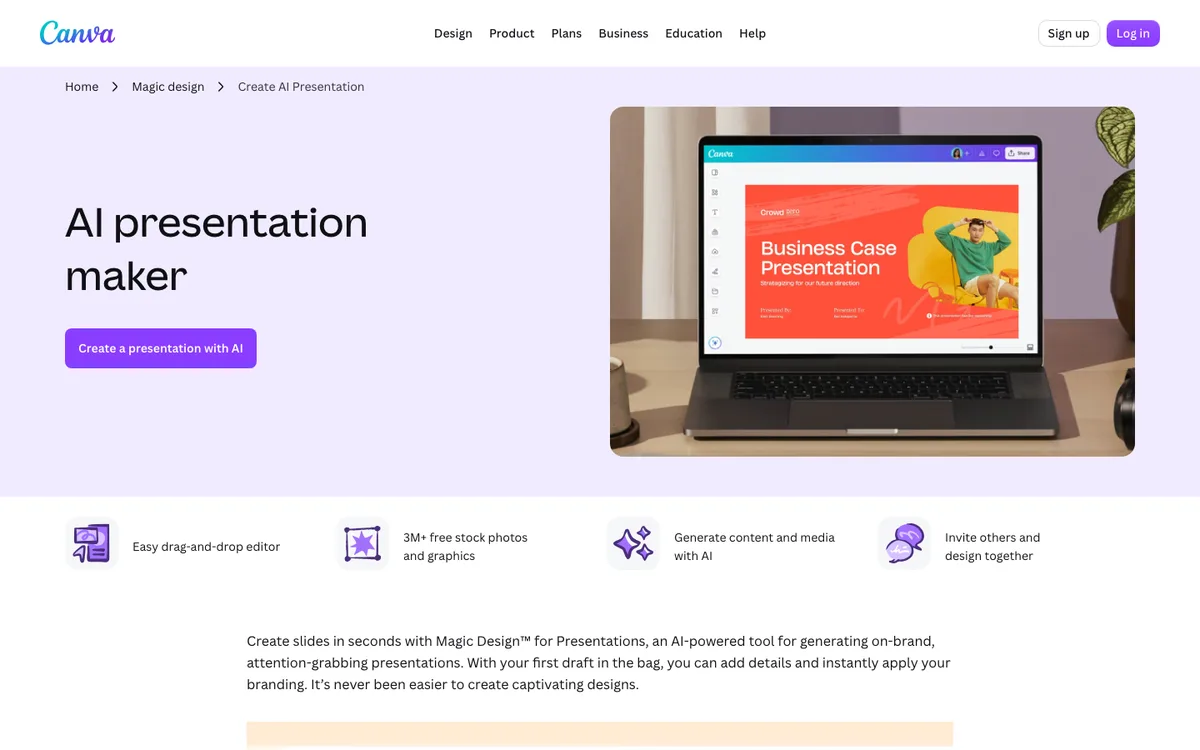
The big advantage is where the draft lands. You end up in the regular Canva editor, with its templates, photo library, brand kits, and collaboration tools. Canva's AI presentation maker page also lists 3M+ free stock photos and graphics you can drop into slides.
The tradeoff: Canva is a design tool first. If you need complex speaker workflows, heavy data tables, or strict corporate PowerPoint templates, you'll feel the limits.
How Canva's AI Presentation Maker Works
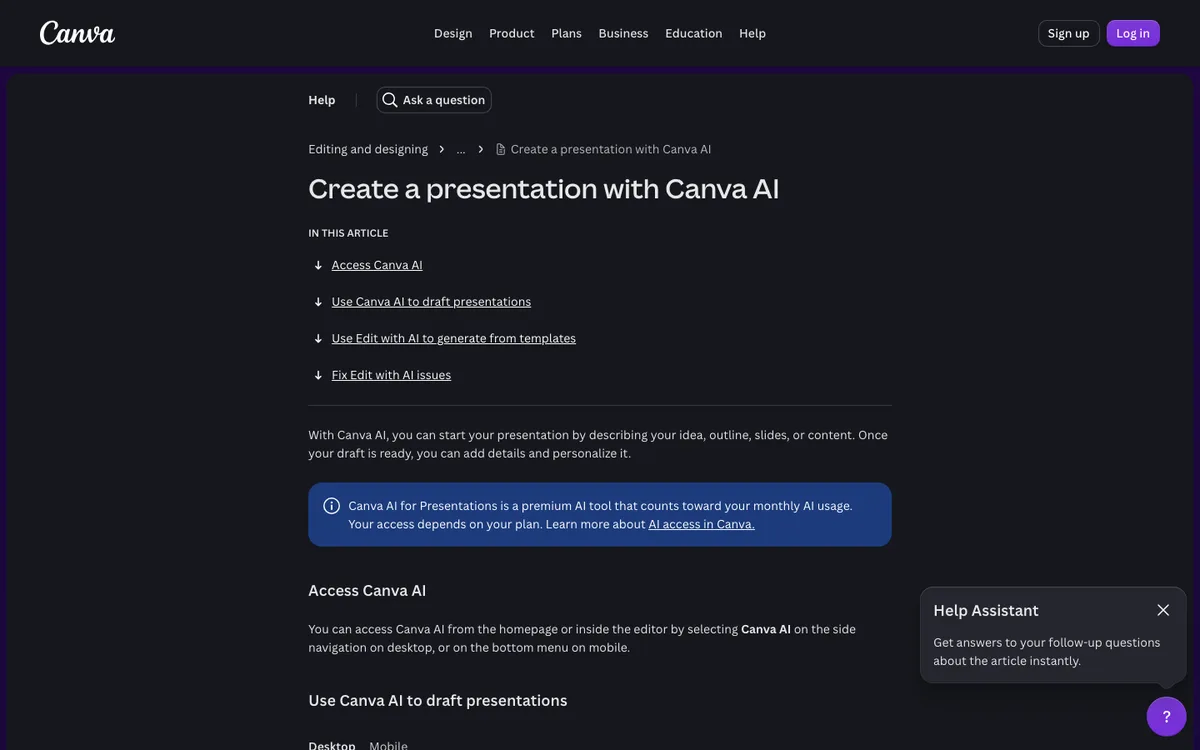
Canva gives you two main ways to generate a deck: from the Canva AI home screen or from a template. Both are documented in Canva's guide to creating a presentation with Canva AI.
Generate a Deck From a Prompt
From the Canva homepage, you select Canva AI, choose Presentation, and describe what you need. You can also speak your prompt, upload a file, add an existing Canva design, or apply a Brand Kit before you submit.
Canva AI may then show a proposed outline. You can edit it before you click Generate presentation. That's the step that matters most, because fixing the story at the outline stage is faster than fixing ten finished slides.
Canva notes one catch here: you only get the outline step when you generate from Canva AI on the homepage. Generating from the editor's Templates tab gives you fewer options.
Generate From a Template With Edit With AI
If you like a template's look, open it and select Edit with AI. You describe the content, and Canva AI rebuilds the deck using that template's style. You can do the same with your company's Brand Templates or remix one of your own private designs.
This is the better route for brand-conscious teams. The template sets the visual rules, and the AI fills in the content.
Edit and Polish the Draft
Once the draft is ready, you're in the normal Canva editor. Canva's product page highlights several AI helpers you can use from there:
- Magic Write: rewrites, shortens, or expands slide text and drafts presenter notes.
- Translate: translates your deck into over 100 languages.
- Magic Charts and Magic Insights: turn data into charts and pull out patterns.
- Magic Animate: adds motion across the deck in one click.
- Layouts and Styles: suggest new slide arrangements or apply another design's colors and fonts.
You can then present from Canva, share a link, or download the deck.
Canva AI Presentation Maker Pros and Cons
Canva's strengths come from the editor around the AI, not the AI alone. Here's the balanced view.
| Pros | Cons |
|---|---|
| Drafts land in a full design editor with templates and stock assets | Each generated deck uses your shared monthly AI allowance |
| Works from prompts, voice, uploaded files, or existing templates | Outline review only appears when you start from the Canva AI homepage |
| Brand Kits and Brand Templates keep drafts on brand | PPTX exports can change fonts and drop animations |
| Real-time collaboration and share links built in | AI drafts still need your facts, data, and examples |
| Pro is cheaper than most dedicated AI presentation tools | Generic template looks are common because millions use the same library |
Canva AI Presentation Maker Pricing
Canva doesn't sell the AI presentation maker separately. It's included in every plan, with different amounts of AI usage. Prices below come from Canva's US pricing page on November 11, 2026, with yearly billing selected.
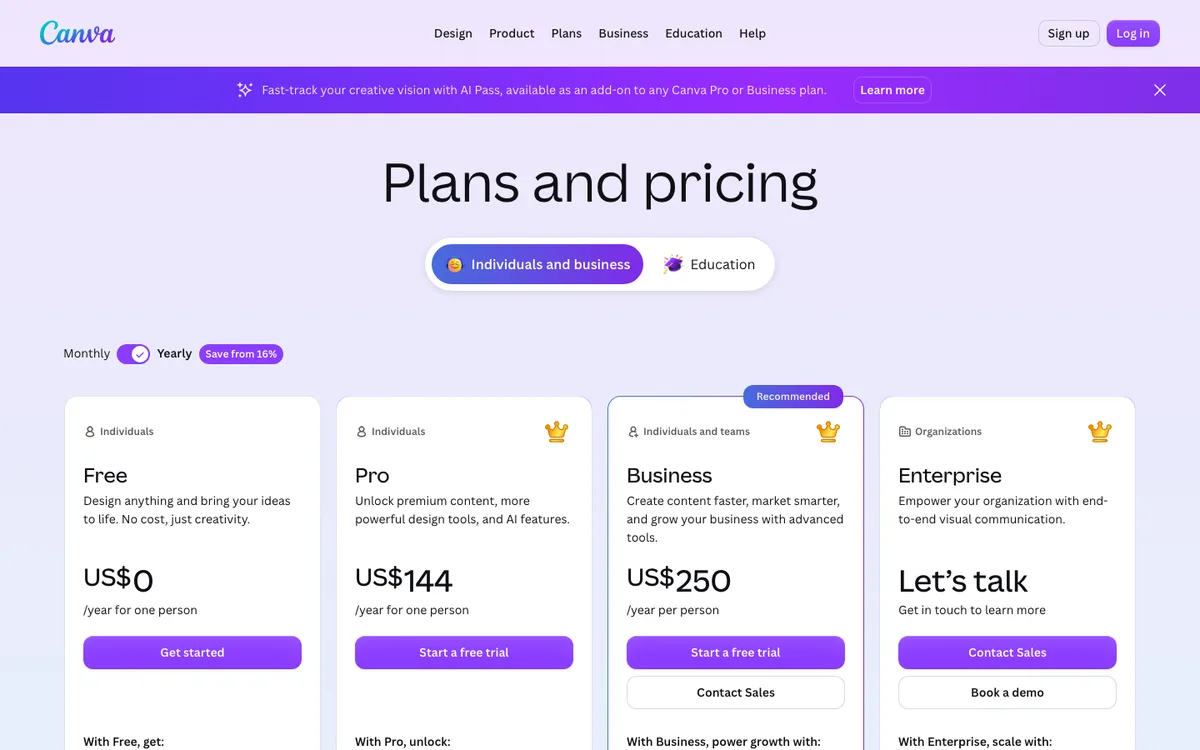
| Plan | US price (billed yearly) | AI allowance for Premium and Ultra AI tools |
|---|---|---|
| Free | $0 | Limited access to Standard and Premium AI; no Ultra AI |
| Pro | $144/year for one person | 10x more than Canva Free |
| Business | $250/year per person | 20x more than Canva Free |
| Enterprise | Custom pricing | 20x more than Canva Free |
The AI allowance figures come from Canva's AI usage policy. Canva says yearly billing saves from 16% compared with monthly billing. Prices vary by country, so you may see a different currency and amount where you live.
How the AI Allowance Works
This is the part most reviews skip. Canva groups its AI tools into Standard, Premium, and Ultra tiers. Generating a design with Canva AI is a Premium AI tool, and Canva's newer conversational design feature, Canva AI 2.0, is an Ultra AI tool.
All Premium and Ultra tools share one monthly allowance that resets each month. Ultra tools use the most of it. So if you also generate images or videos with Canva AI, you'll have fewer deck generations left.
On paid plans (except Pro Lite, which is sold in some countries), Standard AI tools such as Magic Formulas don't count against the allowance. On Canva Free, they do. Need more? Canva sells an AI Pass add-on for Pro and Business plans.
Limits to Know Before You Commit
Canva's AI presentation maker is strong for speed and visuals. These are the limits that cause the most frustration.
PowerPoint Export Fidelity
You can download any Canva presentation as a PPTX file. But Canva's download file type guide warns that PPTX files may look different in Microsoft PowerPoint. You may need to install the same fonts on your computer, and animations and embedded videos aren't supported in the PPTX export.
That's fine if you present from Canva. It's a problem if your sales team must edit the deck in PowerPoint afterward.
Generic Drafts Need Real Content
The AI fills slides with a plausible outline and copy. It doesn't know your numbers, customers, or results. Plan to replace every statistic, quote, and example with your own, and fact-check anything the AI adds through its web research option.
Brand Control Depends on Your Plan
Brand Kits are a paid feature, which Canva's product page marks as Pro. If brand consistency matters, budget for at least Pro, and set up Brand Templates so Edit with AI starts from your approved look.
Who Should Use Canva's AI Presentation Maker?
Canva's AI presentation maker suits people who care about how a deck looks and want to finish it in one tool.
- Use it if: you already design social posts, flyers, or reports in Canva, you want branded decks fast, or you present directly from a browser.
- Skip it if: your company requires native PowerPoint files, you build data-heavy decks with live tables, or you need many AI generations every day on a Free plan.
For most small teams, Canva Pro is the sweet spot. It unlocks Brand Kits and a much larger AI allowance at a lower price than most dedicated AI deck tools.
Canva AI Presentation Maker Alternatives
The right alternative depends on where your decks need to live after the AI drafts them.
| Tool | Best for | Starting price | Key difference from Canva |
|---|---|---|---|
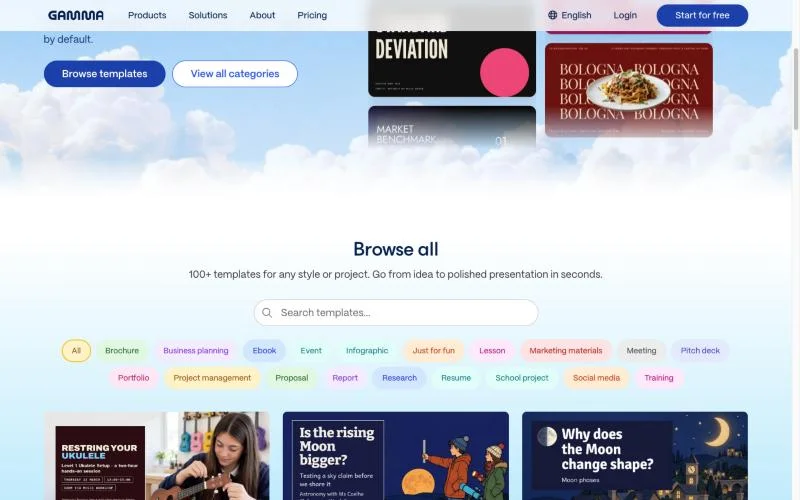
| Gamma | Fast AI-first decks, docs, and one-page sites | Free plan; paid prices shown in local currency | Built around AI generation and web-style cards, not a classic slide editor |
| Beautiful.ai | Smart slide templates that auto-format as you edit | $14.50/month billed annually (Pro) | Layouts adjust automatically, with less freeform design control |
| Plus AI | Teams that must work inside PowerPoint or Google Slides | $10/month billed annually (Basic) | Generates native, editable slides in the apps your company already uses |
Beautiful.ai and Plus AI prices were checked on their official pricing pages on November 11, 2026. Both require a card for their free trials. For a deeper look at Gamma, read our Gamma AI review.
A simple rule: choose Canva for design flexibility, Gamma for the fastest AI-first draft, and Plus AI when PowerPoint or Google Slides is non-negotiable. If you're also choosing a broader design tool, our roundup of the best free and paid graphic design software compares Canva with the alternatives.
Is Canva's AI presentation maker free?
Yes, you can try it on Canva Free, but usage is limited. Generating a presentation is a Premium AI tool that draws from a shared monthly AI allowance. Canva Pro gives you a much larger allowance than Free.
Can I export a Canva AI presentation to PowerPoint?
Yes. You can download any Canva presentation as a PPTX file. Canva warns that fonts may look different and animations or embedded videos won't carry over, so review every slide in PowerPoint.
Can Canva AI make a presentation from a document?
Yes. When you start from Canva AI, you can upload a file from your device or connect third-party apps to import content. Canva AI uses it to draft the outline and slides.
Does Canva AI use my brand colors and fonts?
Yes, if you have a Brand Kit. You can apply a Brand Kit before generating, or use Edit with AI on a Brand Template. Brand Kits require a paid Canva plan.
Do I need Canva Pro to use the AI presentation maker?
No. Canva Free includes limited access to generate presentations with Canva AI. Pro is worth it if you generate decks often or need Brand Kits, because it adds a far larger monthly AI allowance.
Is Canva better than Gamma for AI presentations?
Canva is better if you want full design control and already use Canva for other content. Gamma is faster for AI-first drafts and web-style decks. Both export to PowerPoint with some formatting changes.
Summarize this article with AI:
 ChatGPT
 Perplexity
 Claude
 Grok

Written by
Taher BatterywalaFounder & Chief Curator
Taher Batterywala is a creative marketer who loves to write & design content that organically drives conversions. He is the creator of Pineable, the world's first content marketing design inspiration hub. He regularly shares his thoughts about content design, SEO, and marketing. As a true cinephile, he admires movies above anything else.